TerraVision
Turn Terraform or JSON into professional cloud architecture diagrams in official AWS, Azure and GCP style





Ask your AI assistant for a cloud architecture diagram, in plain words, and get the diagram a cloud architect would draw: the official AWS, Azure and GCP icons, with every resource in its VPC, subnet, zone or resource group. From a description, from your Terraform code, or the other way round, with the Terraform written from the diagram. TerraVision runs on your own computer and needs no cloud access.
Gallery
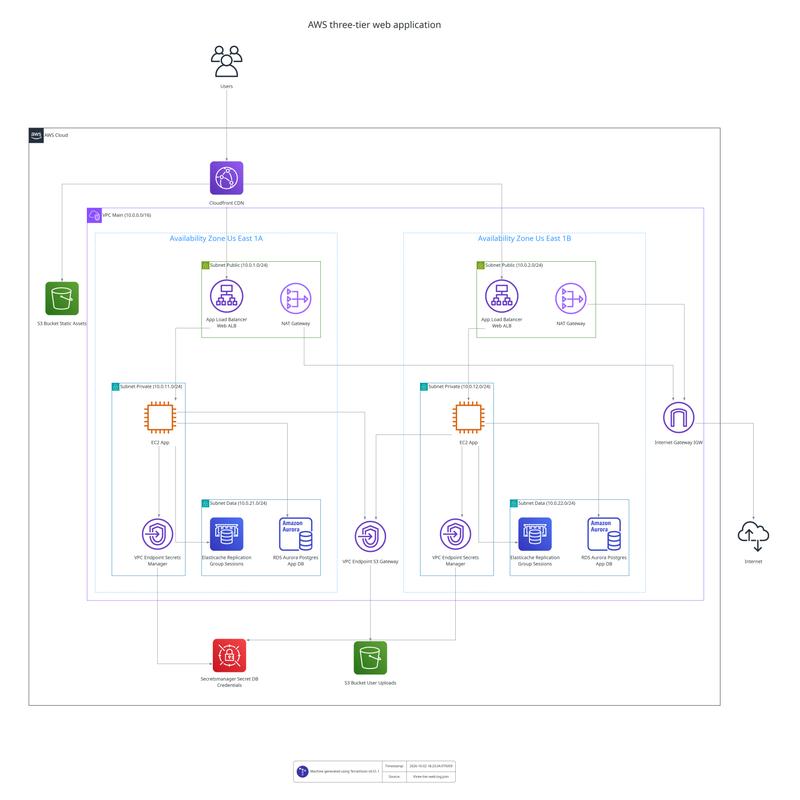
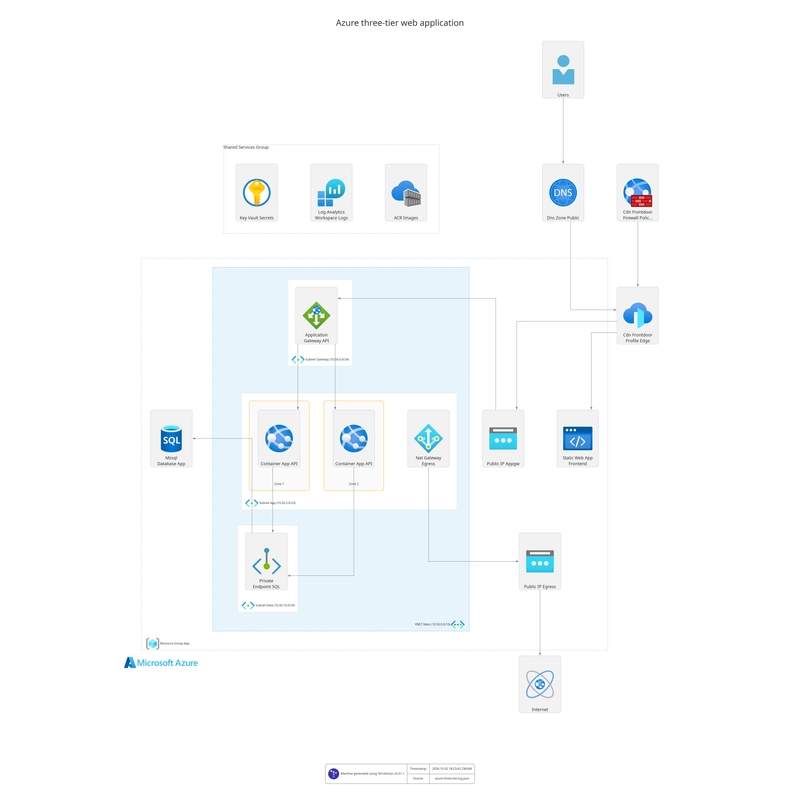
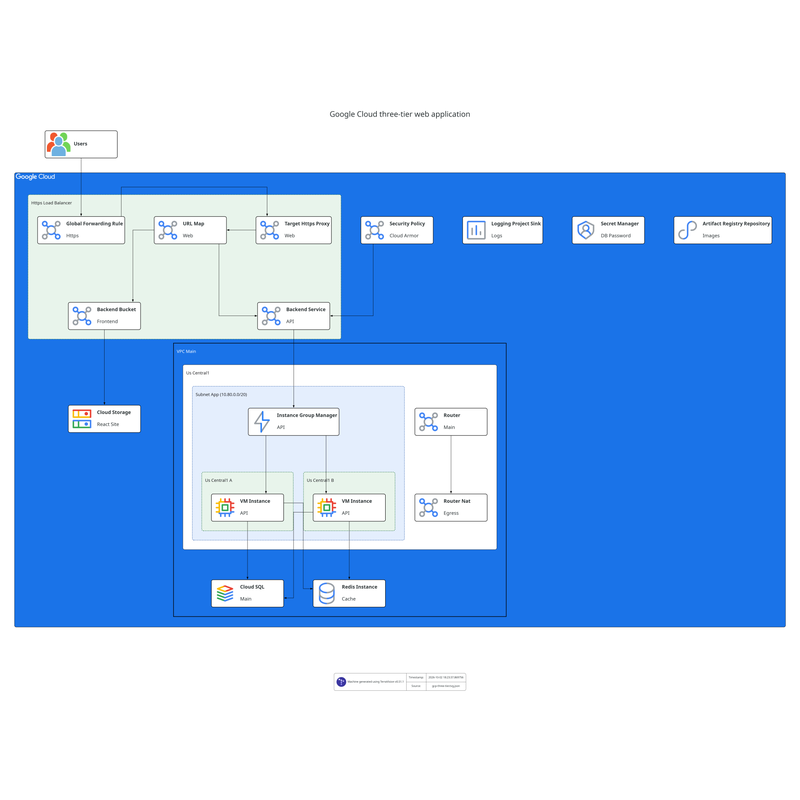
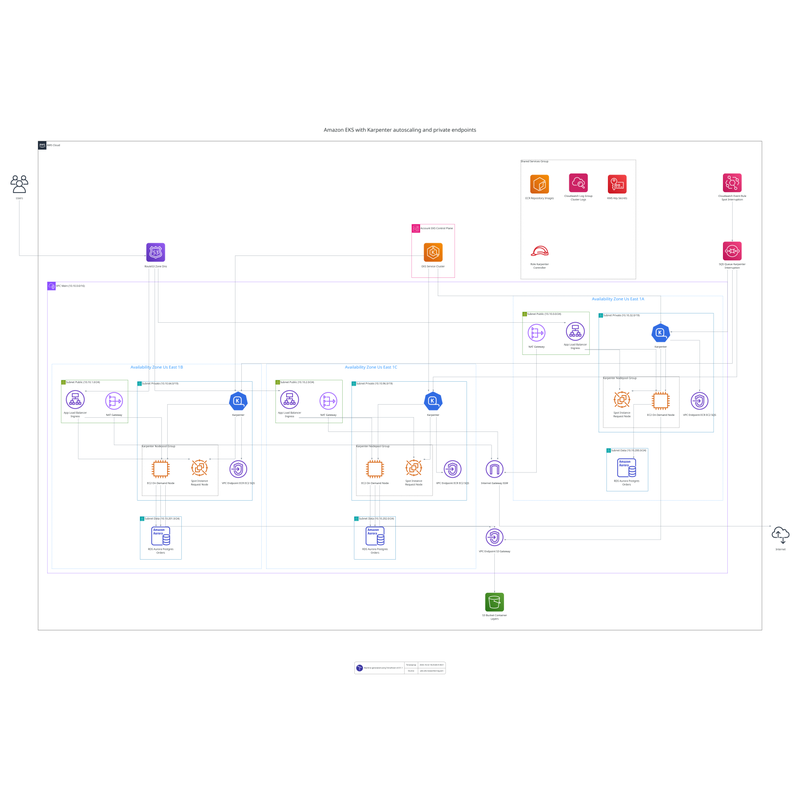
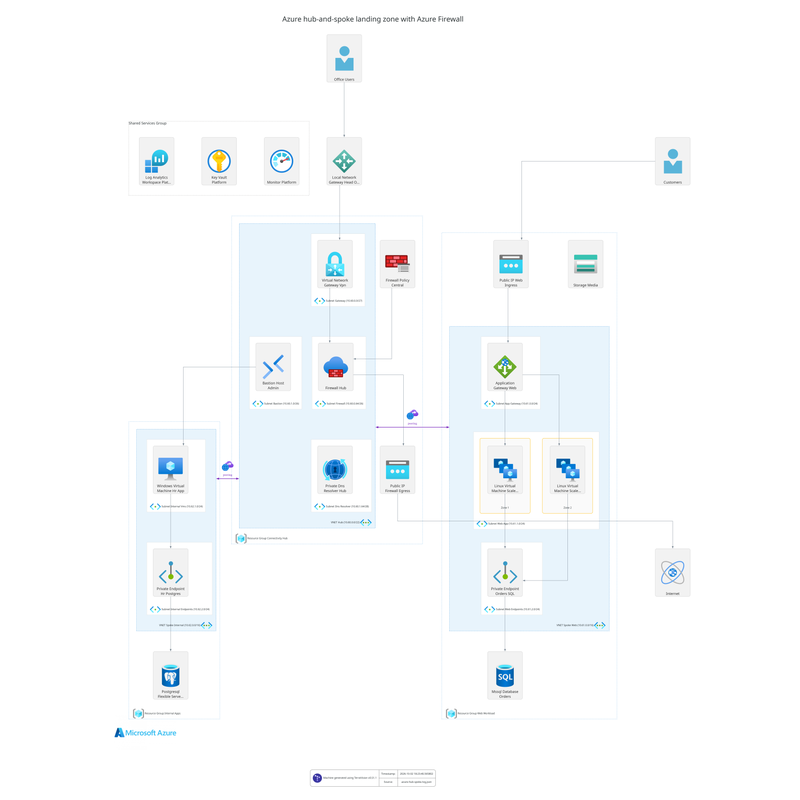
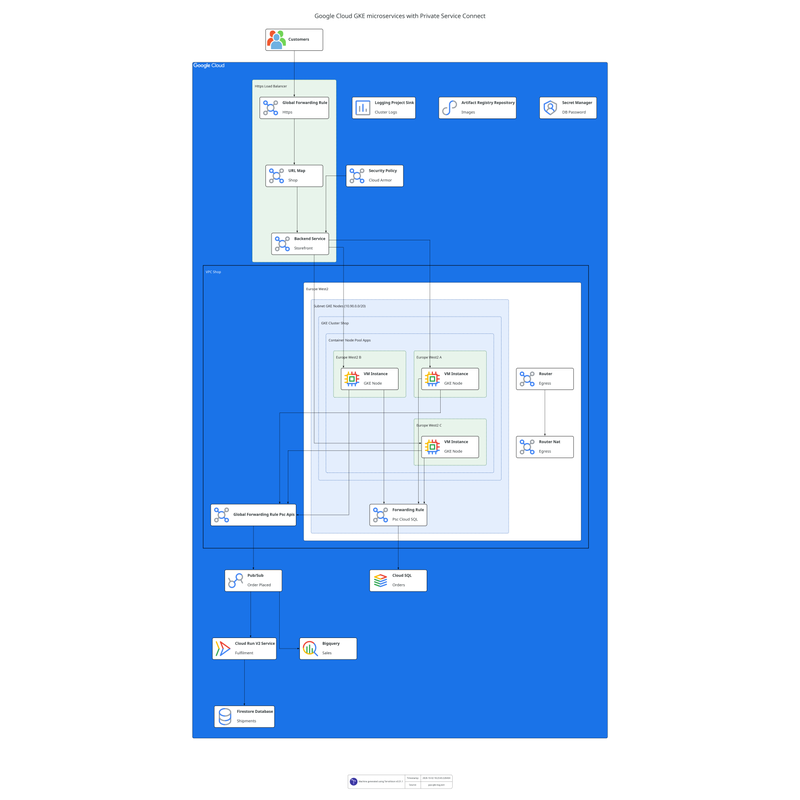
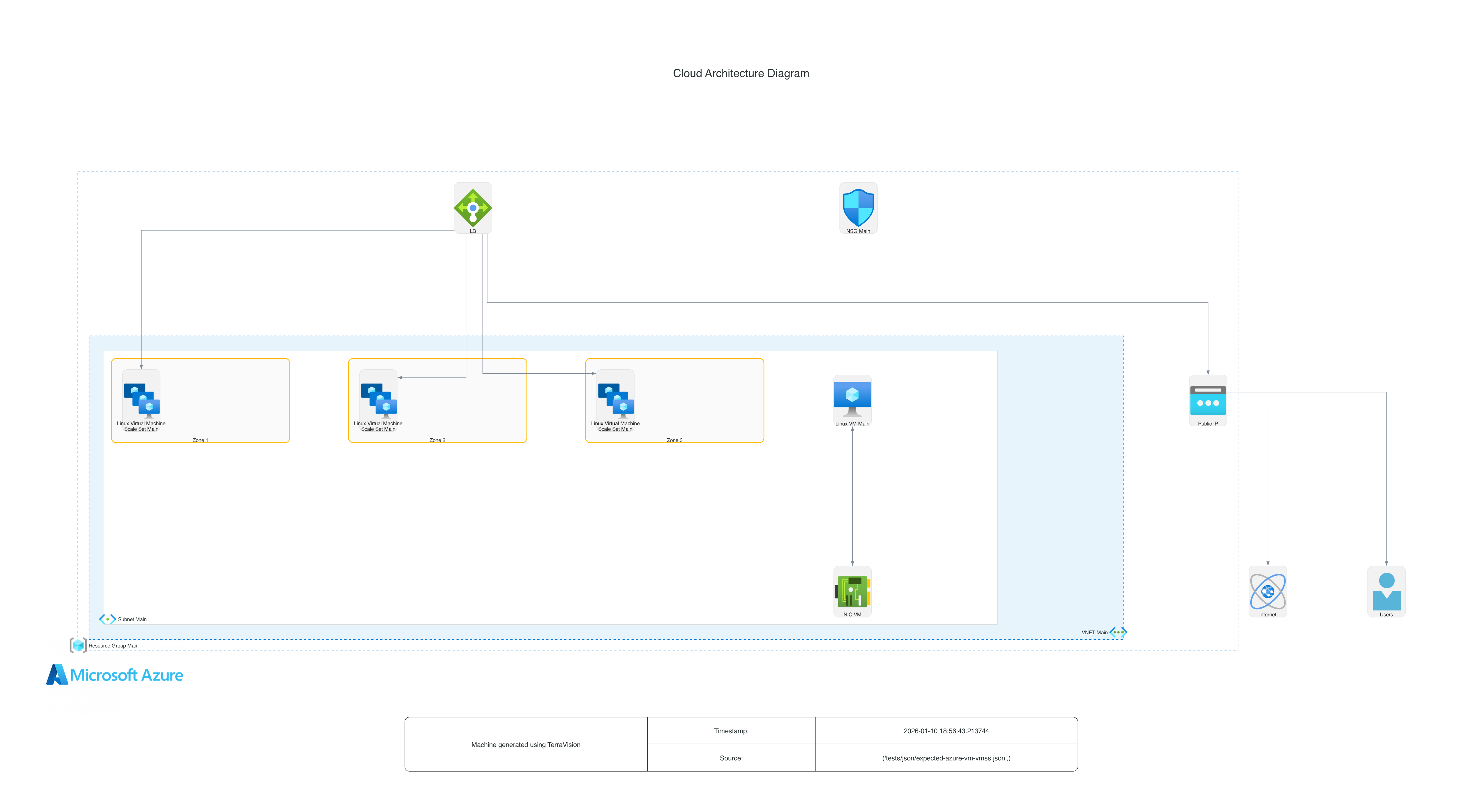
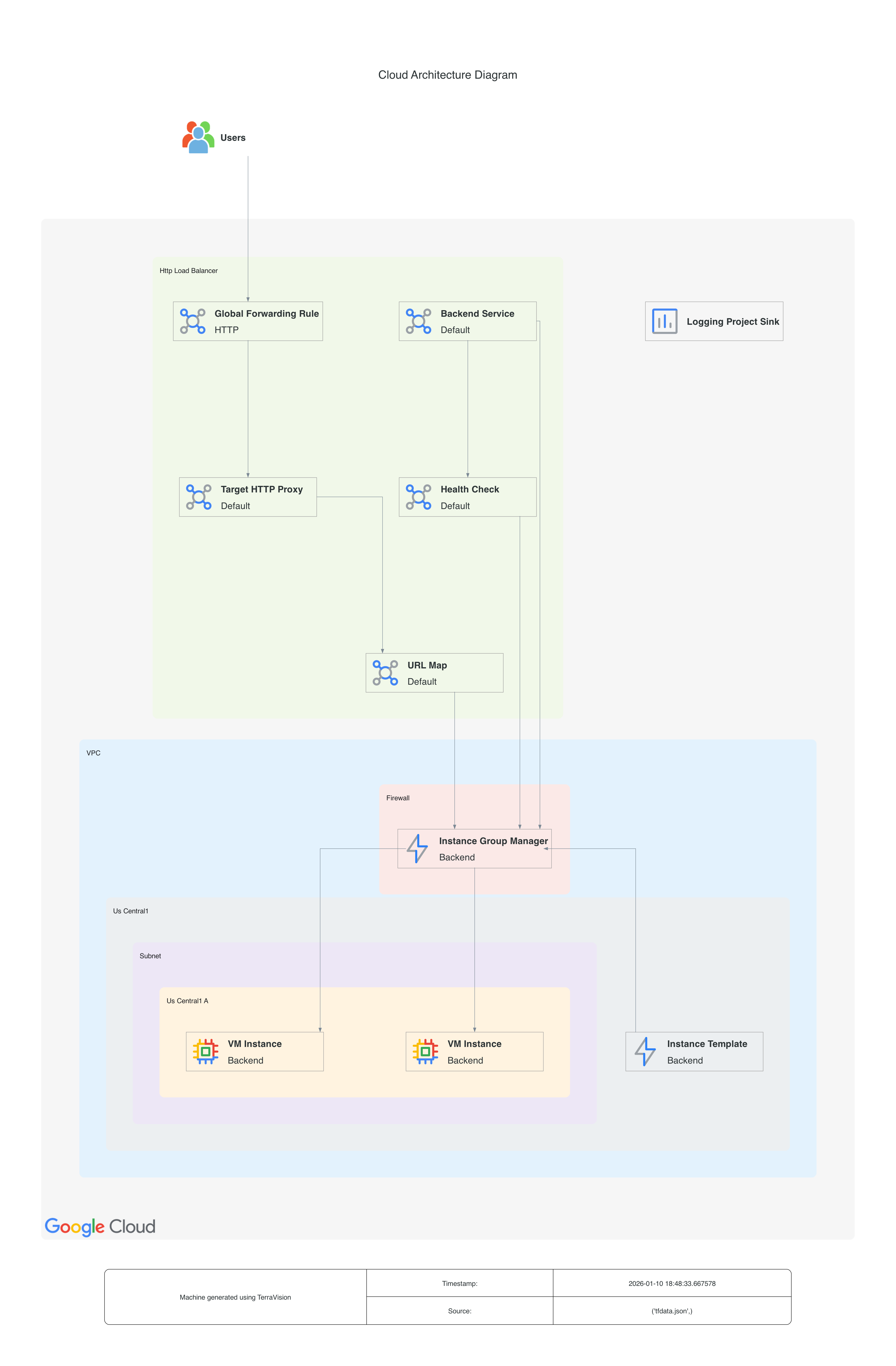
Real output for AWS, Azure and Google Cloud, each with its prompt and source file: see all 12 in the gallery.
Get started with your AI assistant
Ask Claude, Codex, Gemini or Copilot for a cloud architecture diagram (or the code for one) in plain English, and TerraVision draws it with the official icons:
| You have | Ask something like | You get |
|---|---|---|
| An idea | "Draw an AWS three-tier app: React on CloudFront, ECS Fargate behind an ALB in two AZs, SQL Server on RDS Multi-AZ" | The diagram (PNG, SVG, editable draw.io) and its graph, which you can refine by asking: "add ElastiCache", "show how a request flows through it" |
| A diagram you like generated from TerraVision | "Write the Terraform for this architecture" | Terraform for the resources, zones and connections, with the diagram's flows and labels kept (quality depends on model used) |
| Terraform code, local or on GitHub but no VERIFIED diagram | "Draw the architecture of the Terraform in ./infra" or "Show me a cloud architecture diagram of https://github.com/patrickchugh/testcase-bastion//examples" | A diagram of what terraform plan says the code deploys |
| A TerraVision diagram of your Terraform that you want to publish in HTML documentation, or review resource by resource, for example in a security audit | "Make this diagram interactive" or "Give me an interactive version I can click through" | A single HTML page that works in any browser or docs site, no server needed: click any resource to see its settings (encryption, public access, ports, IAM), search and zoom. Built from terraform plan, so it needs the Terraform, not just a picture |
| Terraform with an existing TerraVision diagram in a repository | "Keep this diagram up to date in CI" | A workflow that redraws the diagram whenever the Terraform changes |
Install Graphviz and Git once (plus uv, except for Claude Desktop on Windows and macOS), then connect your assistant: one command in Claude Code, Codex CLI and Antigravity CLI, or one download for Claude Desktop, where the diagram appears right in the chat. Step-by-step for macOS, Windows and Linux: Use TerraVision with AI assistants.
For DevOps teams: the GitHub Action and CI/CD setups redraw the diagram whenever the Terraform changes.
New here? Designing something new: AI cloud architecture diagram generator and diagram to Terraform. Documenting existing code: Terraform diagram generator. See also the cloud architecture diagram generator overview, the AWS, Azure and Google Cloud generators, or see how TerraVision compares with Eraser, Mermaid and other tools.
Watch the 90-Second Intro
The 4-Minute Walkthrough
From JSON or Terraform → Architecture Diagram
No Terraform needed: each key is <terraform_resource_type>.<name>, each value is what it connects to or contains. See the Graph Format.
{
  "tv_aws_users.users": ["aws_cloudfront_distribution.cdn"],
  "aws_cloudfront_distribution.cdn": ["aws_s3_bucket.static_assets", "aws_alb.web_alb~1", "aws_alb.web_alb~2"],
  "aws_s3_bucket.static_assets": [],
  "aws_vpc.main": ["tv_aws_az.us_east_1a", "tv_aws_az.us_east_1b", "aws_internet_gateway.igw"],
  "tv_aws_az.us_east_1a": ["aws_subnet.public~1", "aws_subnet.private~1", "aws_subnet.data~1"],
  "tv_aws_az.us_east_1b": ["aws_subnet.public~2", "aws_subnet.private~2", "aws_subnet.data~2"],
  "aws_subnet.public~1": ["aws_alb.web_alb~1", "aws_nat_gateway.nat~1"],
  "aws_subnet.public~2": ["aws_alb.web_alb~2", "aws_nat_gateway.nat~2"],
  "aws_subnet.private~1": ["aws_instance.app~1"],
  "aws_subnet.private~2": ["aws_instance.app~2"],
  "aws_subnet.data~1": ["aws_db_instance.postgres~1"],
  "aws_subnet.data~2": ["aws_db_instance.postgres~2"],
  "aws_alb.web_alb~1": ["aws_instance.app~1"],
  "aws_alb.web_alb~2": ["aws_instance.app~2"],
  "aws_instance.app~1": ["aws_db_instance.postgres~1", "aws_elasticache_cluster.sessions"],
  "aws_instance.app~2": ["aws_db_instance.postgres~1", "aws_elasticache_cluster.sessions"],
  "aws_db_instance.postgres~1": ["aws_db_instance.postgres~2"],
  "aws_db_instance.postgres~2": [],
  "aws_elasticache_cluster.sessions": [],
  "aws_nat_gateway.nat~1": ["aws_internet_gateway.igw"],
  "aws_nat_gateway.nat~2": ["aws_internet_gateway.igw"],
  "aws_internet_gateway.igw": ["tv_aws_internet.internet"]
}
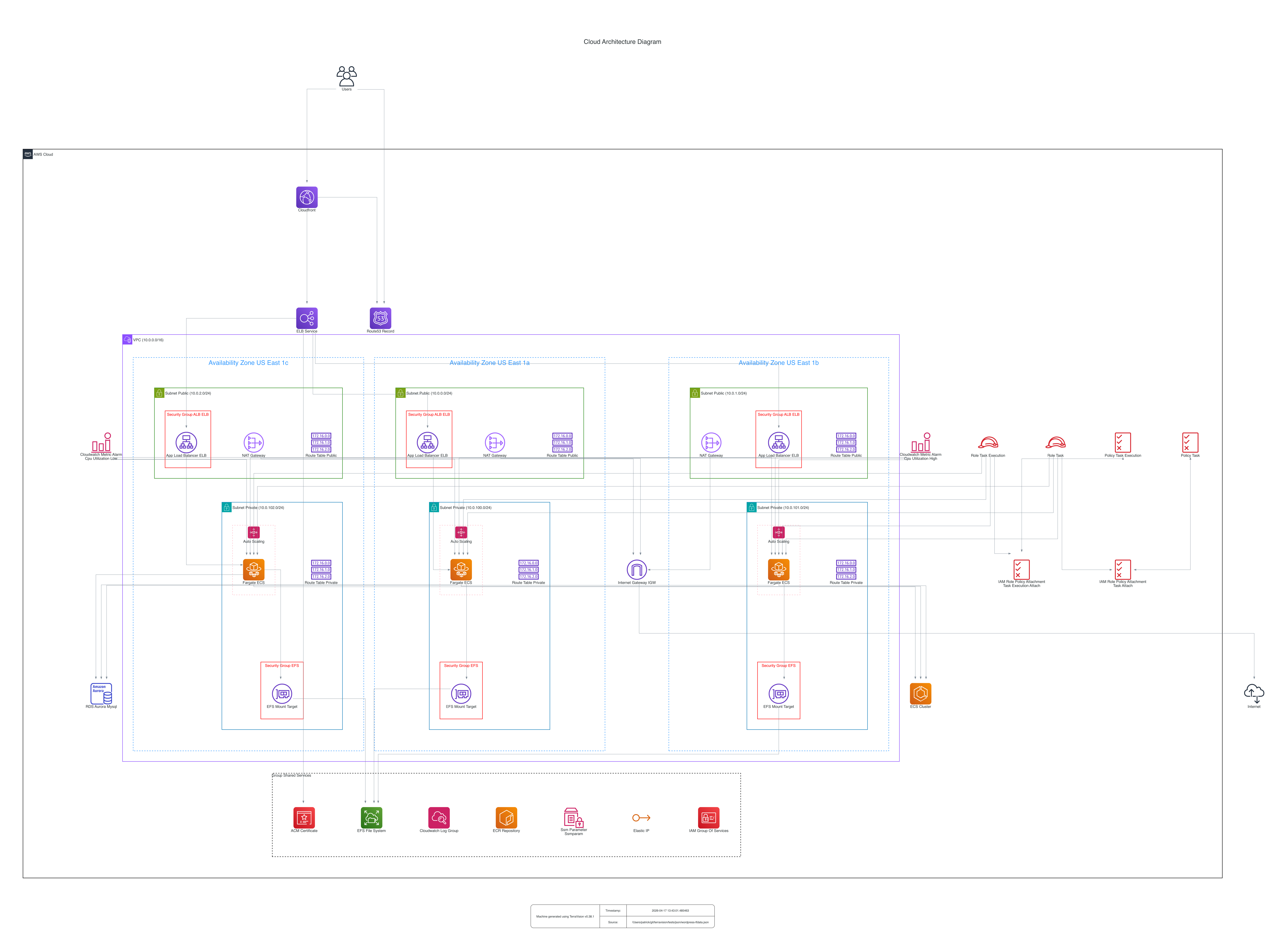
# Excerpt from WordPress on ECS Fargate (the AWS output tab)
# Full source: https://github.com/patrickchugh/terraform-examples/tree/main/aws/wordpress_fargate

module "vpc" {
  source                 = "terraform-aws-modules/vpc/aws"
  cidr                   = var.vpc_cidr
  azs                    = data.aws_availability_zones.this.names
  private_subnets        = var.private_subnet_cidrs
  public_subnets         = var.public_subnet_cidrs
  enable_nat_gateway     = true
  single_nat_gateway     = false
}

module "alb" {
  source             = "terraform-aws-modules/alb/aws"
  load_balancer_type = "application"
  vpc_id             = module.vpc.vpc_id
  subnets            = module.vpc.public_subnets
  security_groups    = [aws_security_group.alb.id]
}

resource "aws_cloudfront_distribution" "this" {
  origin {
    domain_name = module.alb.this_lb_dns_name
    origin_id   = "alb"
  }
  # ...
}

resource "aws_ecs_service" "this" {
  cluster         = aws_ecs_cluster.this.id
  task_definition = aws_ecs_task_definition.this.arn
  launch_type     = "FARGATE"
  network_configuration {
    security_groups = [aws_security_group.alb.id, aws_security_group.db.id, aws_security_group.efs.id]
    subnets         = module.vpc.private_subnets
  }
  load_balancer {
    target_group_arn = aws_lb_target_group.this.id
    container_name   = "wordpress"
    container_port   = 80
  }
}

resource "aws_rds_cluster" "this" {
  engine                 = "aurora-mysql"
  engine_mode            = "serverless"
  vpc_security_group_ids = [aws_security_group.db.id]
  db_subnet_group_name   = aws_db_subnet_group.this.name
}

resource "aws_efs_file_system" "this" {}

resource "aws_efs_mount_target" "this" {
  count           = length(module.vpc.private_subnets)
  file_system_id  = aws_efs_file_system.this.id
  subnet_id       = module.vpc.private_subnets[count.index]
  security_groups = [aws_security_group.efs.id]
}
Why TerraVision?
-
Built for AI assistants
Marketplace extensions and plugins for Claude, Codex, Gemini, Copilot and Cursor. Diagrams appear right in the chat in Claude Desktop. See the guide.
-
Provably Accurate diagrams
Accurate diagrams generated directly from your Terraform code, so your code is the source of truth: what you see is what you get.
-
MCP server and agent skill
Let any AI agent, or an assistant in an IDE such as Visual Studio Code, generate diagrams from a JSON graph or your Terraform. See the MCP server guide.
-
In Diagram flow annotations
Labels, titles, and flow sequences supported via YAML or generated by AI models including Ollama (running local) and AWS Bedrock.
-
JSON graph input
Describe an architecture in a few lines of JSON and render it. Resources match Terraform names, so there's no custom DSL to learn. See the Graph Format.
-
100% client-side
Designed with security in mind. No cloud access required, runs locally, and your code never leaves your machine.
-
CI/CD ready
Automate diagram updates on every PR merge. Works with GitHub Actions, GitLab, Jenkins, Azure DevOps.
-
Free & open source
No expensive diagramming tool licenses.
-
Multi-cloud
AWS, Google Cloud (GCP) and Azure supported.
-
Interactive HTML
terravision visualiseproduces a self-contained HTML with clickable nodes, search, and animated data flow. -
Editable draw.io
Export to
.drawioand open in draw.io, Lucidchart, or any mxGraph editor. -
Terragrunt compatible
Auto-detects single- and multi-module Terragrunt projects. No extra flags needed.
Supported Cloud Providers
| Provider | Status | Resource types |
|---|---|---|
| AWS | ✅ Full support | 385 types |
| Google Cloud | ✅ Full support | 264 types |
| Azure | ✅ Full support | 245 types |
Every supported resource type is listed on the Node types page. Types without an icon still appear on the diagram as a generic node, and the run prints which ones so an icon can be added.
Quick start: the command line
Install with pipx, uv or pip:
pipx install terravision   # or: uv tool install terravision
                           # or: pip install terravision in a virtual env
TerraVision needs Python 3.11+ (uv installs one for you), Graphviz and Git. Terraform 1.x (or OpenTofu) is only needed when drawing from Terraform code.
Diagram from JSON (no Terraform needed)
Describe the architecture as nodes and connections, and save it as architecture.tvg.json:
{
  "tv_aws_users.users": ["aws_cloudfront_distribution.cdn"],
  "aws_cloudfront_distribution.cdn": ["aws_s3_bucket.static_site", "aws_alb.api"],
  "aws_vpc.main": ["aws_subnet.public~1", "aws_subnet.private~1"],
  "aws_subnet.public~1": ["aws_alb.api"],
  "aws_subnet.private~1": ["aws_lambda_function.orders"],
  "aws_alb.api": ["aws_lambda_function.orders"],
  "aws_lambda_function.orders": ["aws_dynamodb_table.orders", "aws_sqs_queue.events"]
}
{
  "tv_azurerm_users.users": ["azurerm_cdn_frontdoor_profile.edge"],
  "azurerm_cdn_frontdoor_profile.edge": ["azurerm_linux_web_app.api"],
  "azurerm_resource_group.app": ["azurerm_virtual_network.main", "azurerm_mssql_database.orders", "azurerm_servicebus_queue.events", "azurerm_key_vault.secrets"],
  "azurerm_virtual_network.main": ["azurerm_subnet.app"],
  "azurerm_subnet.app": ["azurerm_linux_web_app.api"],
  "azurerm_linux_web_app.api": ["azurerm_mssql_database.orders", "azurerm_servicebus_queue.events", "azurerm_key_vault.secrets"]
}
{
  "tv_gcp_users_icon.users": ["google_compute_global_forwarding_rule.lb"],
  "google_compute_global_forwarding_rule.lb": ["google_cloud_run_v2_service.api"],
  "google_cloud_run_v2_service.api": ["google_sql_database_instance.orders", "google_pubsub_topic.events", "google_storage_bucket.assets"],
  "google_pubsub_topic.events": ["google_cloudfunctions2_function.worker"]
}
Render it:
Each key is <terraform_resource_type>.<name>; each value is what it connects to or contains. That is the whole format. The Graph Format page has the full rules, the JSON Schema and larger examples, and Node types lists every icon.
Using an AI assistant? It can write this JSON for you: see Use TerraVision with AI assistants. For agents reading docs, llms.txt is a plain-text index of the docs, and llms-full.txt adds the full node-type reference.
Diagram from Terraform
The diagram is derived from terraform plan, so it shows what the code actually deploys: conditionals, count, for_each and modules are resolved.
Or try the interactive HTML output:
See the Installation Guide for Docker, Nix, and platform-specific instructions, or jump straight into the Usage Guide.
Try the Interactive Demos
These are real outputs of terravision visualise — click any node to see its metadata, use the search box, and pan/zoom around.
Documentation
-
Install via pip, Docker, or Nix. Platform-specific instructions for all dependencies.
-
All commands, options, output formats, and advanced usage patterns.
-
Customise your diagrams with YAML annotations, flows, and AI suggestions.
-
Automate diagrams in GitHub Actions, GitLab, Jenkins, Azure DevOps.
-
Cloud credentials, LLM data, offline use, Terragrunt — the most common questions.
-
Common errors and how to fix them.
Support
- Issues: GitHub Issues
- Discussions: GitHub Discussions
- Source code: github.com/patrickchugh/terravision